To declare your crypto you need the full record of your transactions. On Kraken you can export it as CSV in under five minutes. Here is how.
Why you need your Kraken history
Kraken is a foreign exchange (based in the United States). If you hold more than €50,000 on foreign exchanges, you have to file the Modelo 721.
On top of that, calculating the gains and losses for your tax return requires:
- the date of every buy and sell
- the amount of crypto
- the price in euros
- the fees paid
Step 1: Sign in to your Kraken account
- Go to kraken.com
- Sign in with your email and password
- Complete the 2FA check if you have it switched on
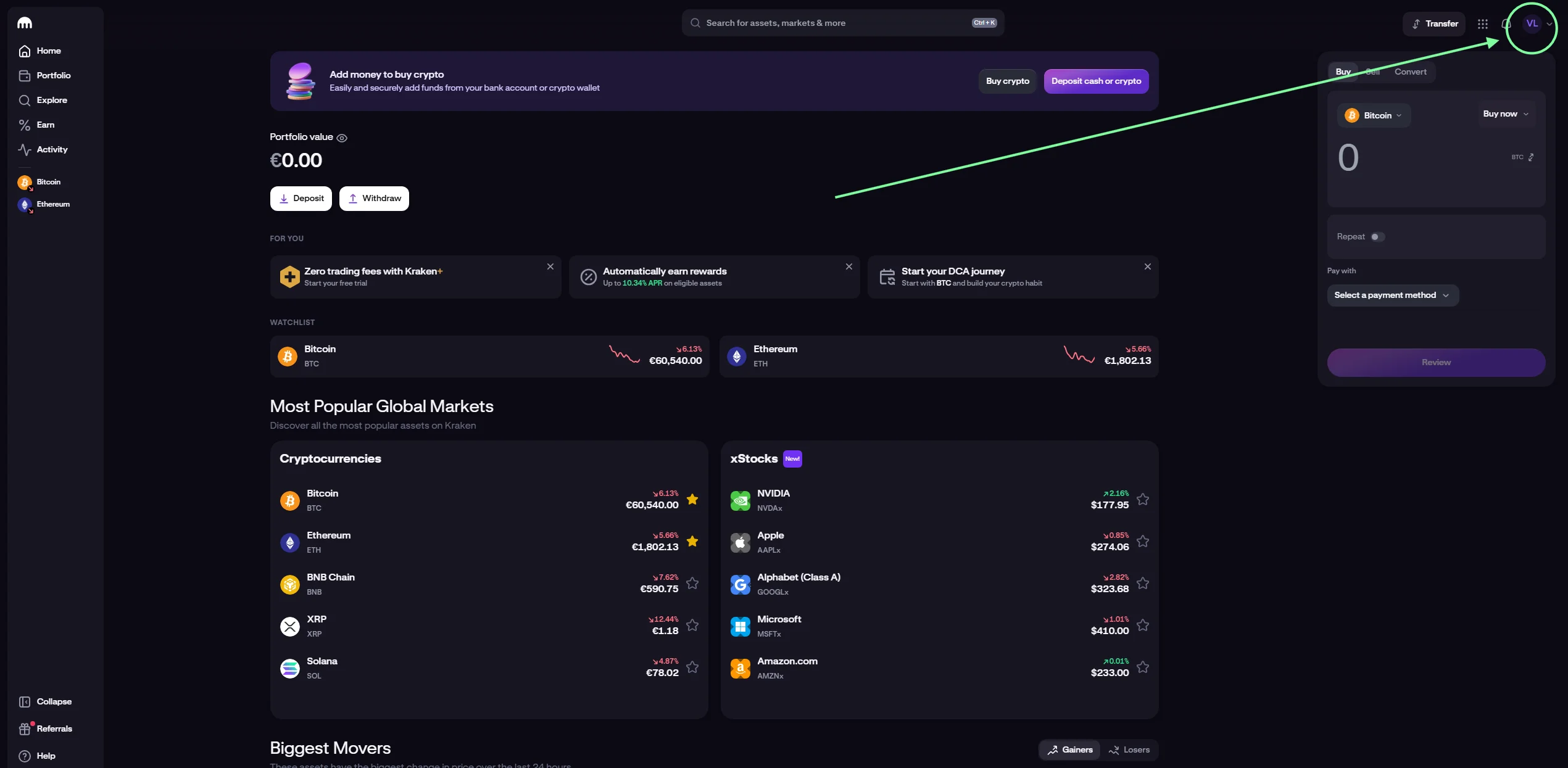
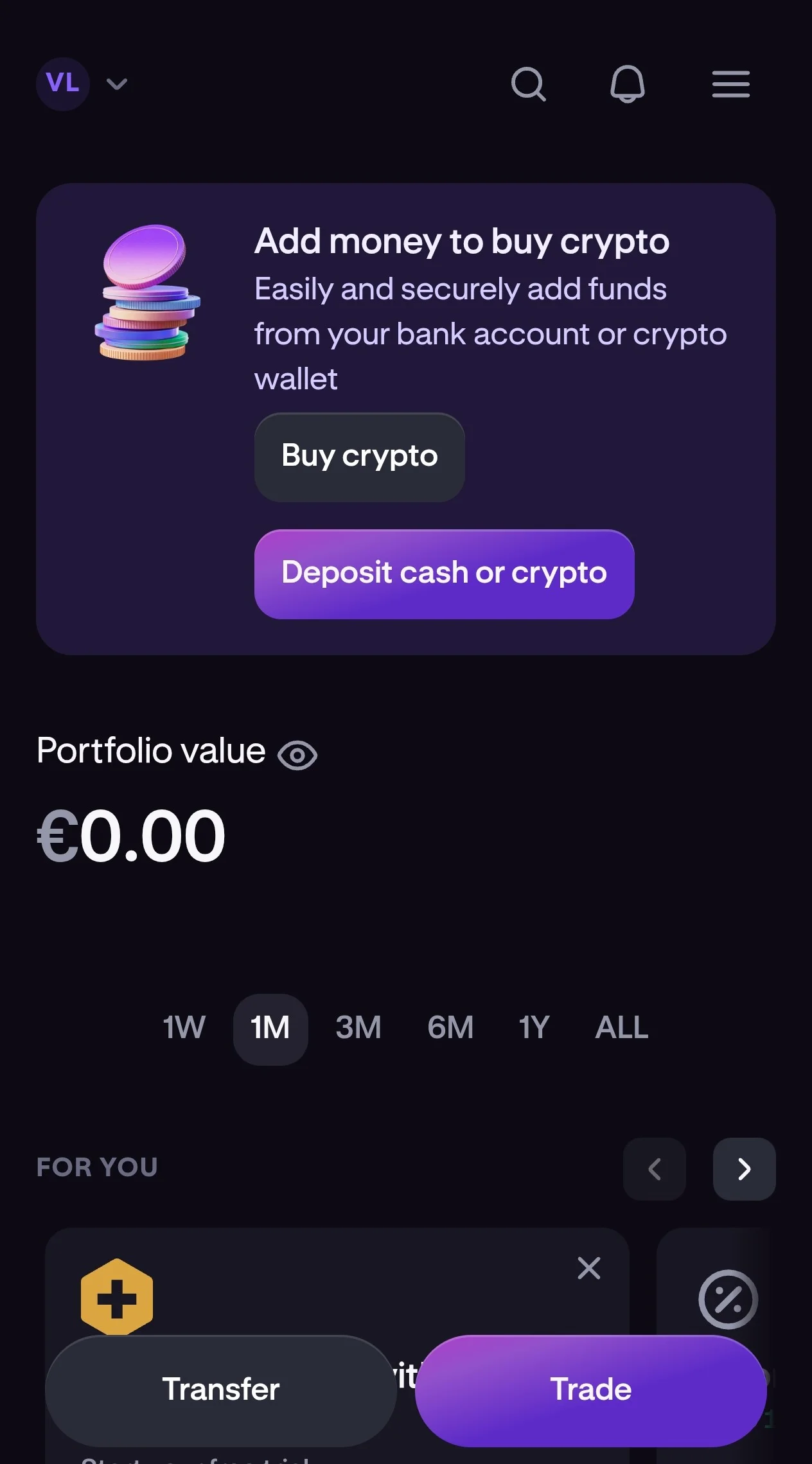
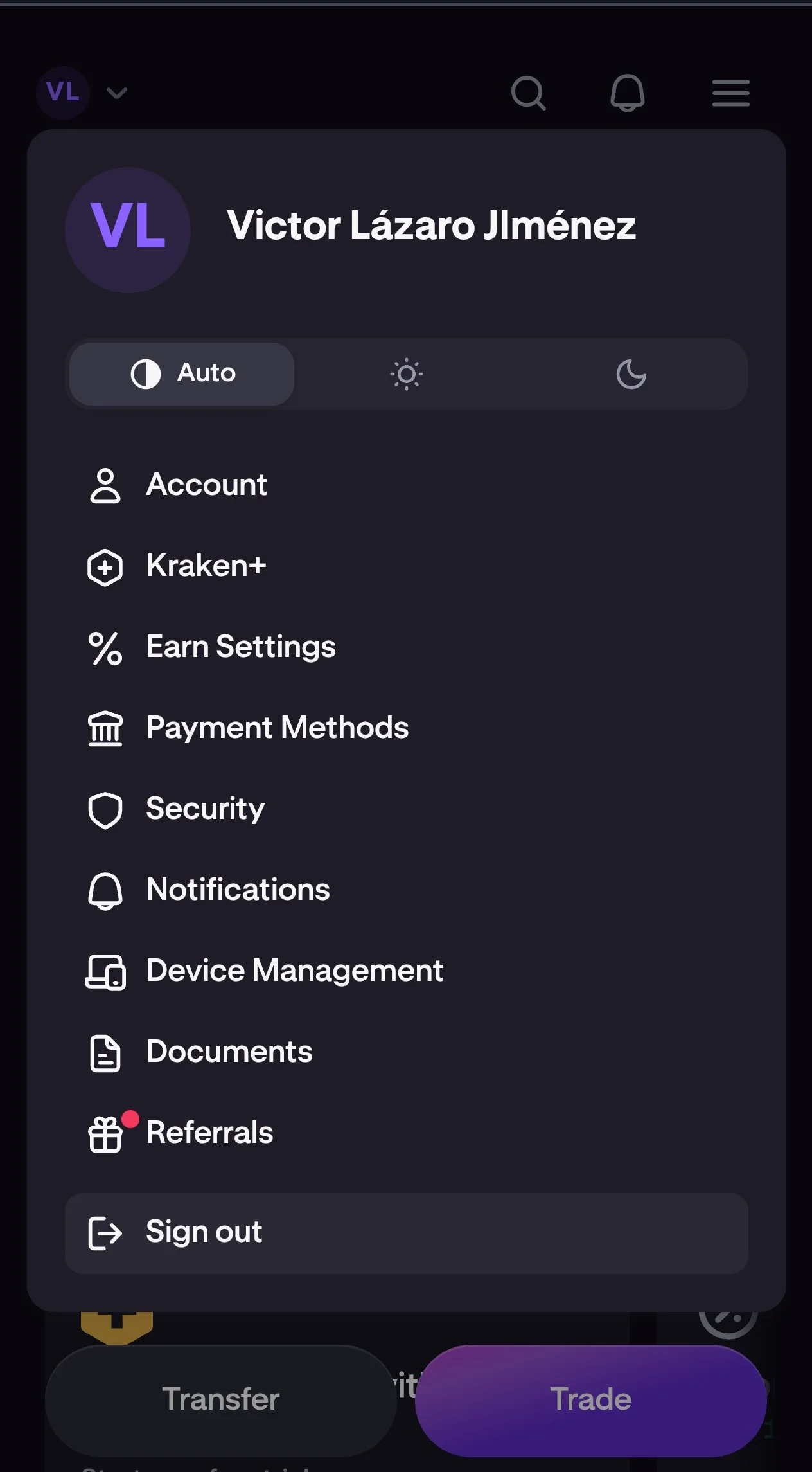
- Click your profile (top right corner)
Step 2: Go to Profile > Documents
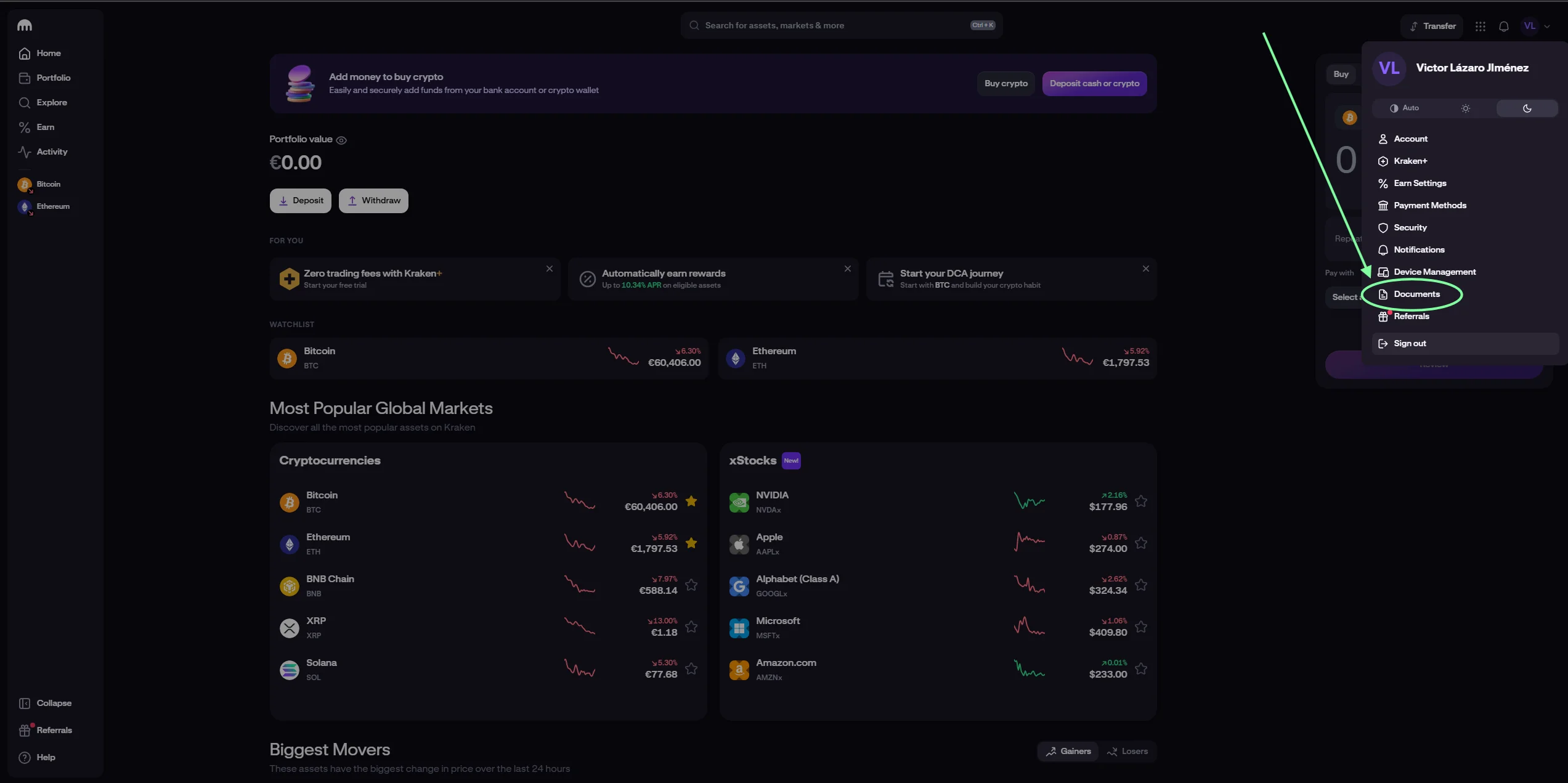
- Click your profile (top right corner, your profile icon)
- Select “Documents”
Step 3: Create the export
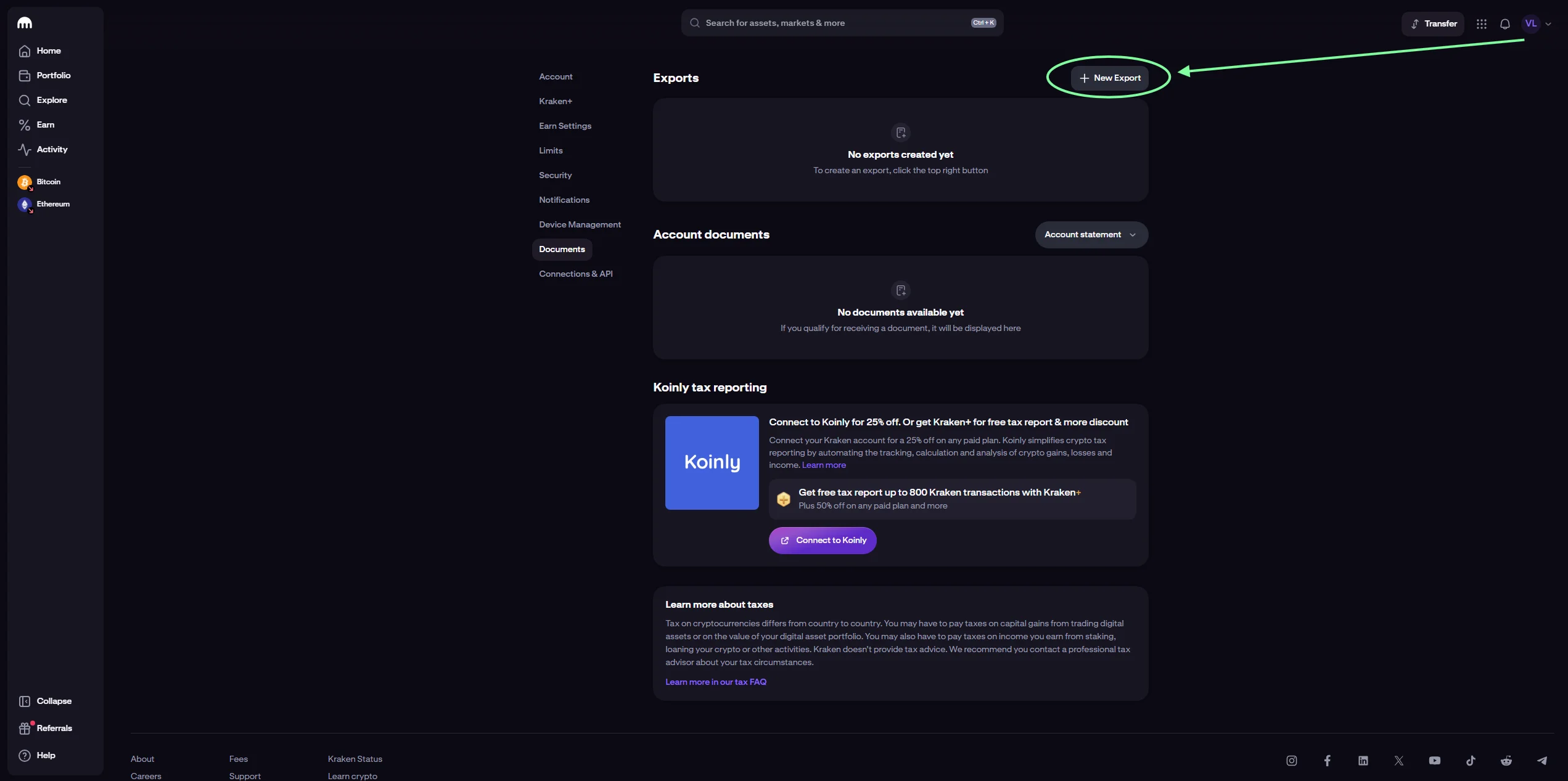
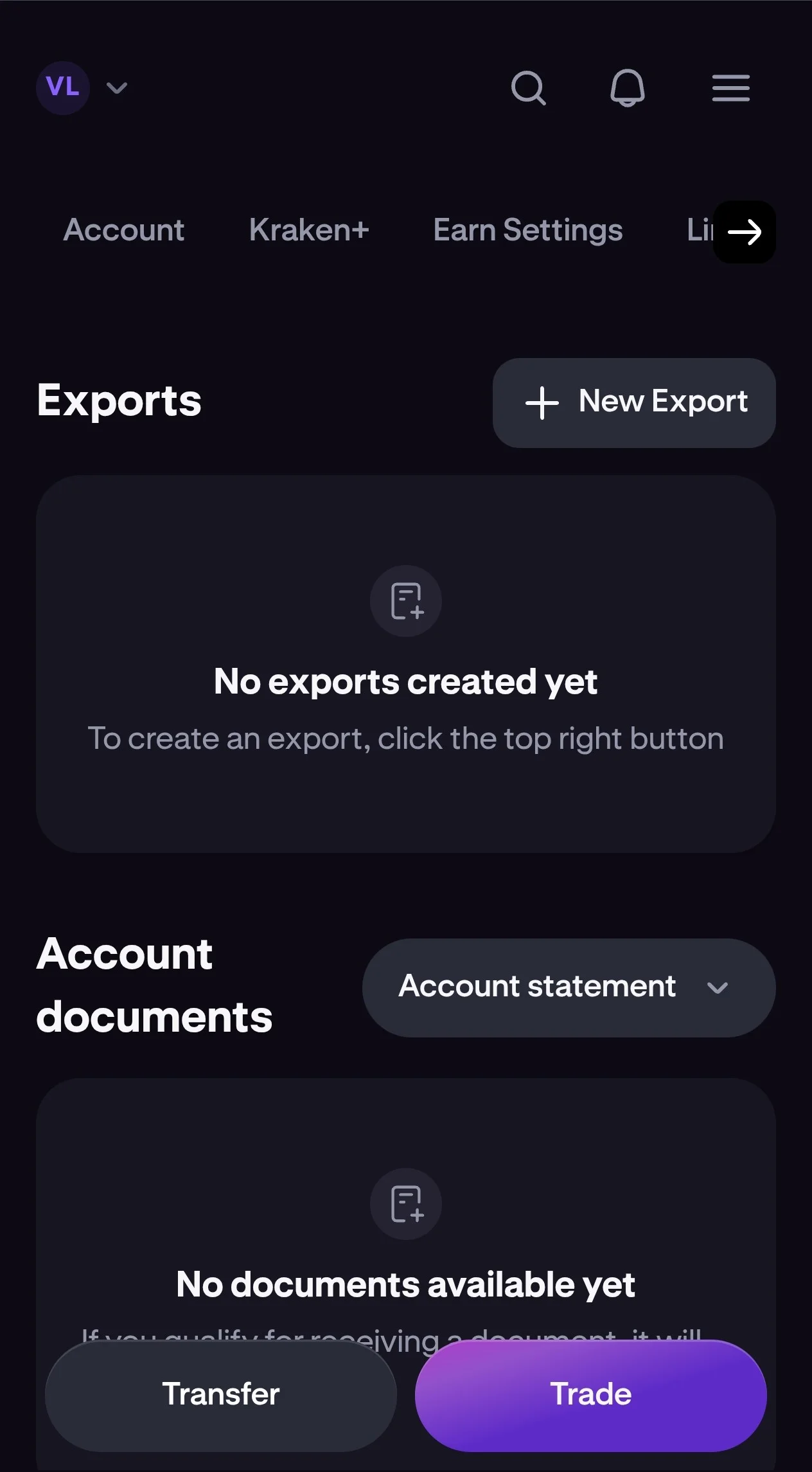
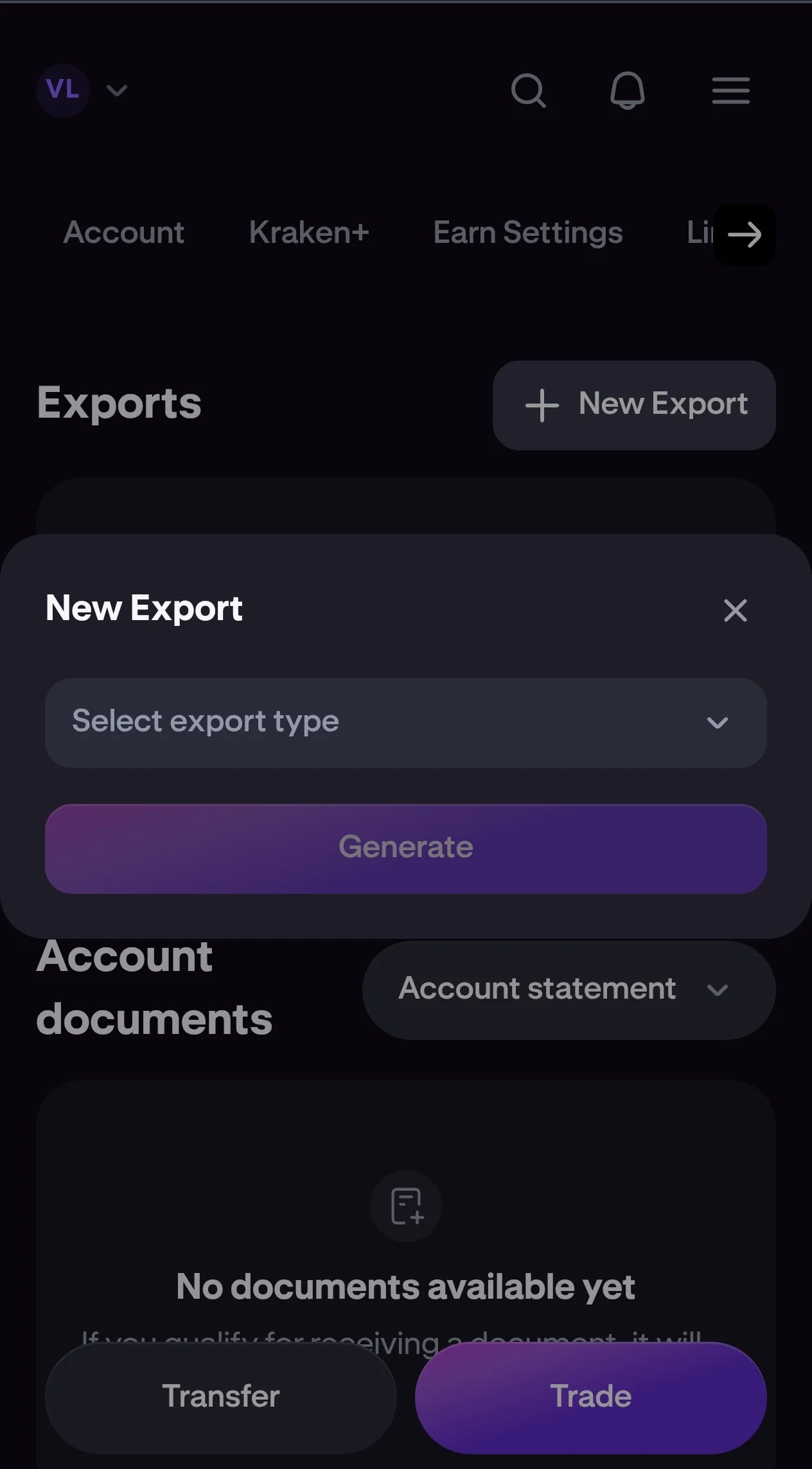
- Click “New export”
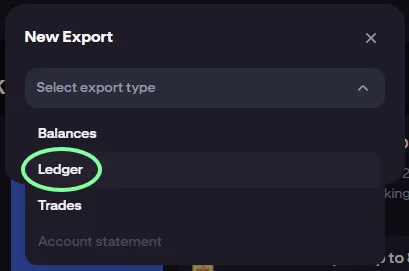
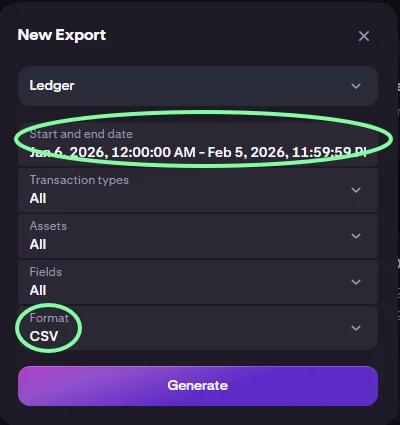
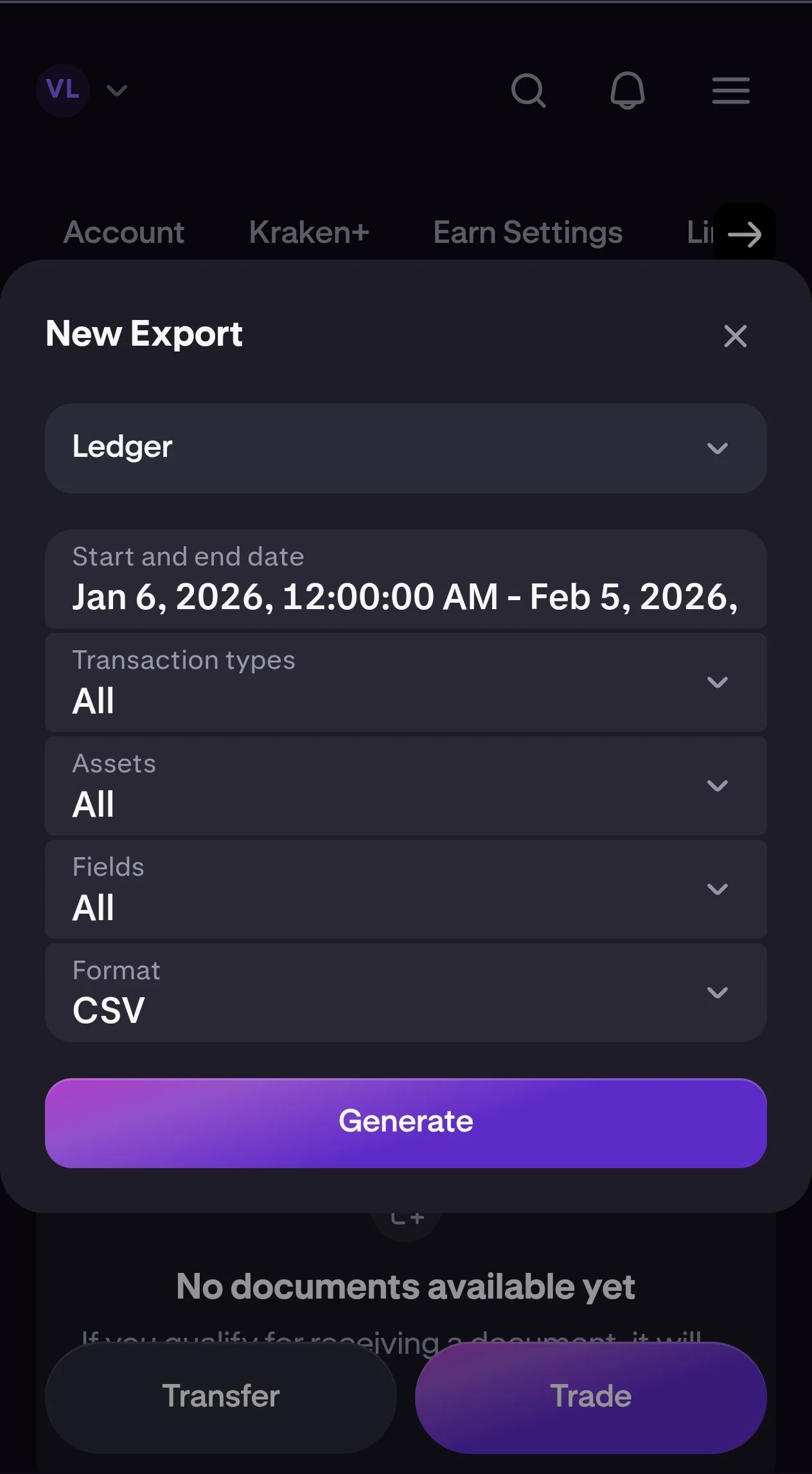
- Choose the “Ledger” format (the full history)
- Set the date range (it must cover your entire history on Kraken)
- Select ”.CSV file” as the output format
- Click “Generate”
Report types available
| Type | What it includes | What it is for |
|---|---|---|
| Ledger | Every movement (deposits, withdrawals, trades, staking) | The complete history |
Our advice: export “Ledger” so you have everything. You can always filter afterwards.
Step 4: Download the file
- Kraken will process the request (it can take a few minutes if your history is long)
- Once ready, it appears for download in the same section
- Click “Download”
- A CSV file is downloaded
What the Kraken CSV file contains
The “Ledgers” file includes these columns:
| Column | Description |
|---|---|
txid | Unique transaction ID |
refid | Reference ID |
time | Date and time (UTC) |
type | Type: deposit, withdrawal, trade, staking, etc. |
subtype | Transaction subtype |
aclass | Asset class |
asset | Cryptocurrency (BTC, ETH, EUR, etc.) |
amount | Amount |
fee | Fee |
balance | Balance after the transaction |
Exporting your staking history
If you have staked on Kraken, the rewards appear in the “Ledgers” report with:
- type: “staking”
- subtype: “reward”
Every reward is a taxable event. Rewards are taxed as investment income when you receive them. There is more detail in our guide to staking and taxation.
Exporting by API (advanced)
If you want to automate the extraction, or you have a lot of transactions, you can create an API Key on Kraken:
- Go to your profile on Kraken
- Open Connections & API
- Click Create API key
- Select Go to Kraken Pro
- In the new window, under Spot Trading API, press “Create API key”
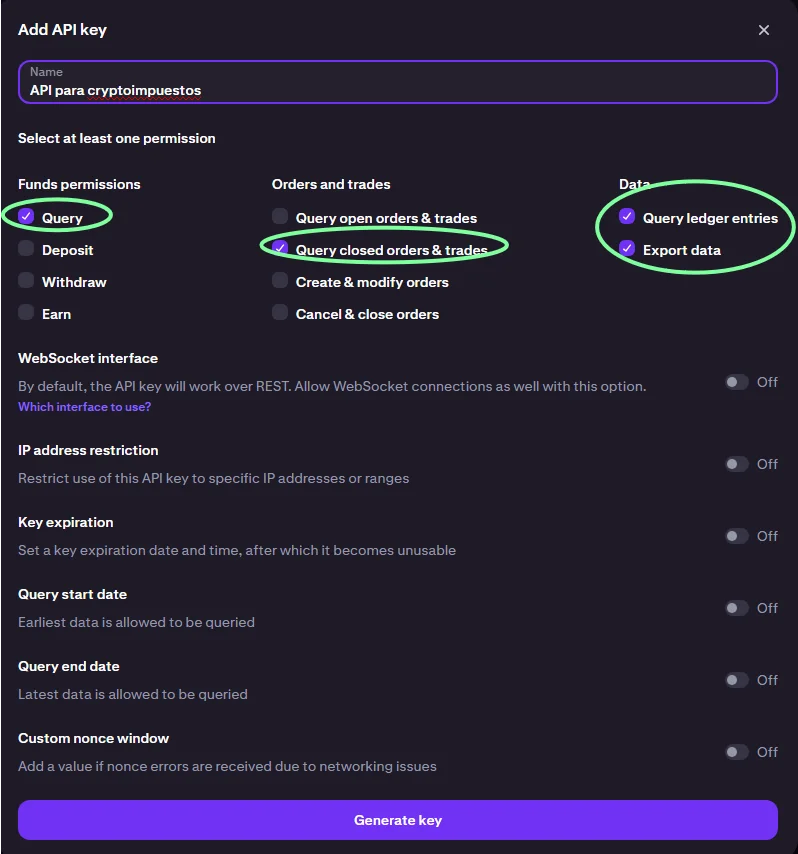
- Give your API Key a name
- VERY IMPORTANT: select these permissions:
- Query
- Query closed orders and trades
- Query ledger entries
- Export data
- Press Generate key
Common problems
The file is empty
- Check that the dates are right
- Make sure you had activity in that period
A transaction is missing
- Check the date range
- Some older transactions may be in a different format
The file does not open properly in Excel
- The CSV uses the comma as its separator
- In a Spanish Excel: Data > Get data > From CSV file
- Choose “comma” as the delimiter
Frequently asked questions
How far back can I export?
All the way. Kraken keeps your full history from the day you opened the account.
Does the file include prices in euros?
Not directly. It includes the amounts, but the euro price at the moment of each transaction has to be worked out by the Cryptoimpuestos team.
Can I export as PDF?
No. Export as CSV. It is the most useful format for processing afterwards.
Does Kraken count as a foreign exchange for the Modelo 721?
Yes. Kraken is based in the United States and is not registered with the Banco de España. If your combined holdings on foreign exchanges exceed €50,000, you have to file the 721.
Summary
| Step | Action |
|---|---|
| 1 | Go to kraken.com |
| 2 | Open Profile > Documents |
| 3 | Click “New export” |
| 4 | Choose “Ledger”, the dates and CSV |
| 5 | Generate and download once it is ready |
Need help with your Kraken history?
At Cryptoimpuestos we download and process your Kraken history. We calculate every gain and loss using the FIFO method and prepare your tax return.

Víctor Lázaro
Tax adviser, Cryptoimpuestos.es