.DvXD41ig_1LkHV4.webp)
How to export your transaction history from the BingX exchange
If you use BingX and need to export your transaction history so your Cryptoimpuestos specialist can work out your crypto tax, this guide is for you. It covers two methods: downloading CSV files and connecting by API.
Why you need your BingX history
BingX is an exchange based in Singapore. For Spanish tax purposes it counts as a foreign exchange.
If you hold more than €50,000 on foreign exchanges, you have to file the Modelo 721.
To calculate the gains and losses for your return you need:
- the date of every purchase and sale
- the quantity of crypto
- the price at the moment of the transaction
- the fees paid
The files you need
For a complete return you will have to export two CSV files from the new unified BingX interface (Data export):
- Transaction history — every account movement (Funding Account, Spot, USDⓈ-M Perpetual Futures, Coin-M Perpetual Futures, Standard Futures)
- Order history — every executed order (Spot Account, USDⓈ-M Perpetual Futures, Coin-M Perpetual Futures, Standard Futures, ChainSpot)
Note: BingX recently merged the export into a single screen with two tabs. If you were following older guides with separate sections such as “Generate statements” or “Export history”, everything now lives here.
Method 1: CSV export
Step 1: open the Help Center
- Log in to bingx.com with your credentials
- On the top navigation bar, click “More”
- Choose “Help Center”

Step 2: go to Export statements/orders
In the self-service section of the Help Center, click “Export statements/orders”.

Shortcut: you can also go straight to bingx.com/transaction-history/
Step 3: generate the “Transaction history”
Once inside Data export you will see two tabs. Start with the first one: “Transaction history”.
- Under Time range (UTC+8), choose “Customize” and set a range of one full year (e.g. 2025-01-01 to 2025-12-31)
- Under Account, tick every option: Funding Account, Spot Account, USDⓈ-M Perpetual Futures, Coin-M Perpetual Futures and Standard Futures
- Under File type, choose “CSV”
- Under Transaction type, choose “All” (not “Tax report data” — we want the complete dataset)
- Click “Generate”
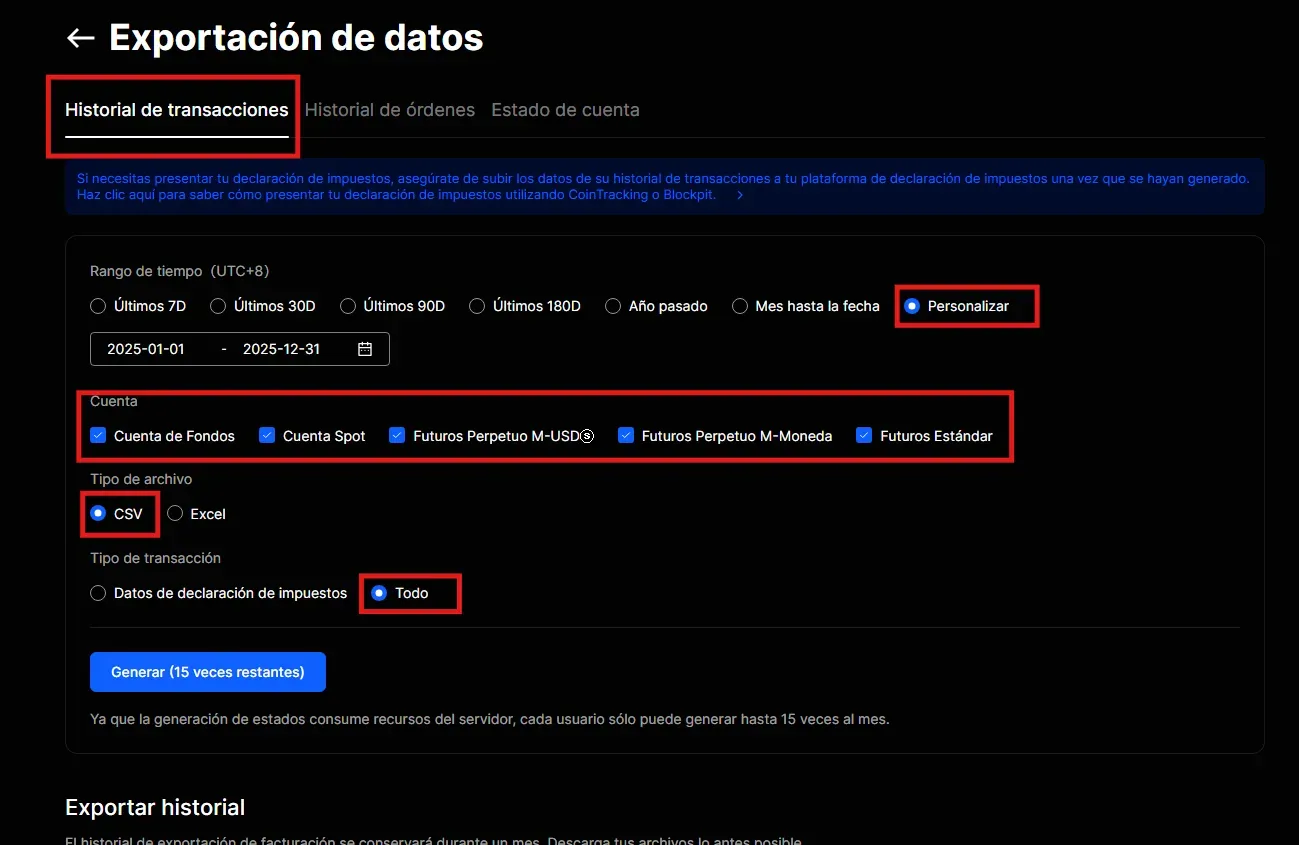
Important: records are only available for a maximum of one year per export. Some regions and restricted users can only export 30 days. If you cannot export your whole history, contact BingX support.
Step 4: generate the “Order history”
Without leaving the screen, switch to the “Order history” tab (the middle one).
- Under Time range (UTC+8), choose “Customize” and use the same one-year range
- Under Account, tick every option: Spot Account, USDⓈ-M Perpetual Futures, Coin-M Perpetual Futures, Standard Futures and ChainSpot
- Under File type, choose “CSV”
- Click “Generate”
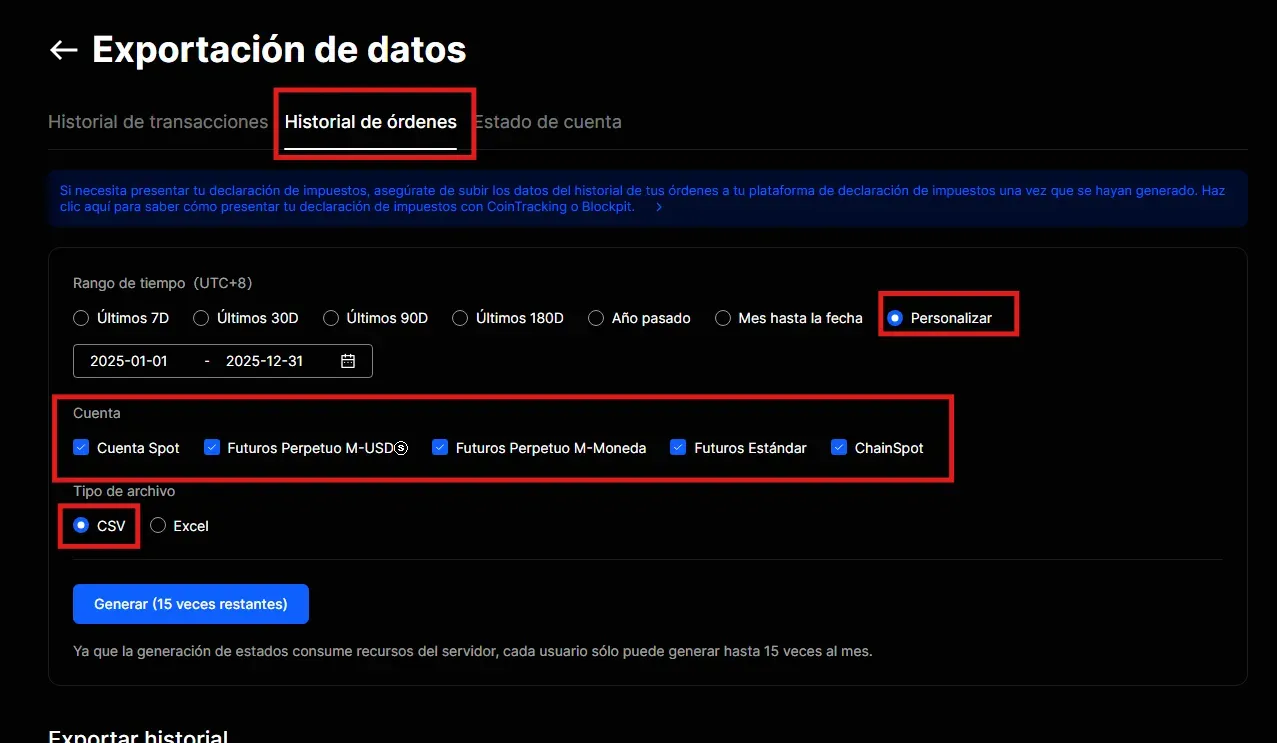
Step 5: download and repeat
- Download every generated file
- Repeat the process for each year you traded on BingX
Important: you can only generate up to 5 statements a month (15 on some accounts). Plan your exports.
Sending the documentation
Gather all the exported CSV files and send them to your assigned CryptoImpuestos specialist for tax processing.
Important: do not open or modify the CSV files before sending them to us. Opening them in Excel can change the date or number formatting.
Method 2: API connection
For a more direct and accurate connection, you can link your account by API.
Step 1: go to API Management
- Log in to bingx.com
- Click your profile icon at the top right
- Choose “API Management”

Step 2: create the API key
- On the API Management page, click “Create API”

Step 3: set the permissions
- In API key label, enter a descriptive name (e.g. “Renta2024” or “CryptoImpuestos”)
- Under Permissions, tick “Read” only — do not tick Spot, Perpetual Futures Trading, Universal Transfer, Withdraw or any other
- Leave the IP whitelist empty (optional)
- Click “Confirm”

Step 4: copy the keys
Once created, copy the following securely:
- API Key
- Secret Key
Send these keys to your CryptoImpuestos specialist.

Security: the “Read” permission is read-only — it allows account and order information to be viewed, but it cannot trade or withdraw funds. Read-only keys do not expire.
Sub-account balance screenshots
Important: BingX splits your funds across several sub-accounts (Funding Account, Spot, USDⓈ-M Perpetual Futures, Coin-M Perpetual Futures, Standard Futures, ChainSpot). The API only reports the balances of the Spot account, so we need screenshots of the rest to get the full picture of your holdings.
Which screenshots do we need?
Send a screenshot of the balance of every sub-account you hold funds in:
- Funding Account
- Spot Account
- USDⓈ-M Perpetual Futures
- Coin-M Perpetual Futures
- Standard Futures
- ChainSpot
How to get them
- Log in to bingx.com
- Open the overview of your assets from your account menu
- Take a screenshot of each sub-account balance showing the amounts, the coins and the date clearly
- Send the screenshots to your CryptoImpuestos specialist along with the CSV files and/or the API keys
Note: without these screenshots we cannot correctly calculate your holdings for the Modelo 721 or reflect the balances of the sub-accounts other than Spot.
Limits worth knowing
| Limit | Detail |
|---|---|
| Maximum range per export | 1 year |
| Monthly generations | 5-15 at most (depending on the account) |
| Restricted regions | Some can only export 30 days |
| Older history | May require contacting BingX support |
Summary
| File | Tab | Notes |
|---|---|---|
| Transaction history | Tab 1 | Every account, CSV, type “All” |
| Order history | Tab 2 | Every account (ChainSpot included), CSV |
Direct URL to the export screen: bingx.com/transaction-history/
Need help with your BingX history?
At Cryptoimpuestos we download and process your BingX history. We calculate every gain and loss using the FIFO method and prepare your return.
Get in touch and we will take it from there.

Víctor Lázaro
Tax adviser, Cryptoimpuestos.es