Guide to extracting your transaction history from the KuCoin exchange
If you use KuCoin and need to export your transaction history so your Cryptoimpuestos specialist can work out your crypto tax, this guide is for you. It covers two methods: downloading CSV files and connecting by API.
Method 1: downloading CSV files
Step 1: sign in and open your trade history
- Log in to kucoin.com with your credentials and complete the security check
- Select “Orders” in the top right corner
- In the dropdown menu, select “Spot Trade History”

Step 2: export settings
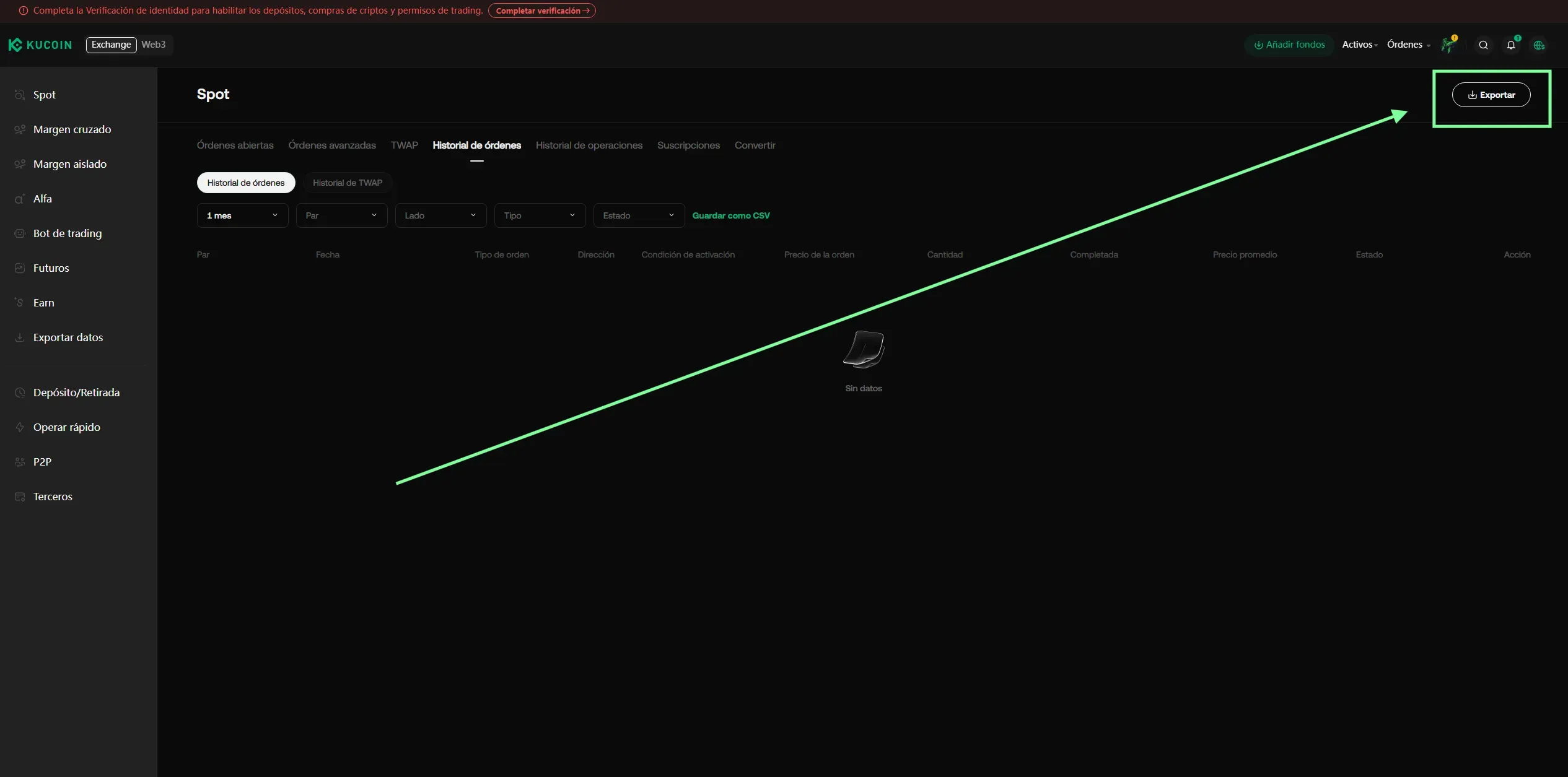
- Click “Export” at the top right of the trade table
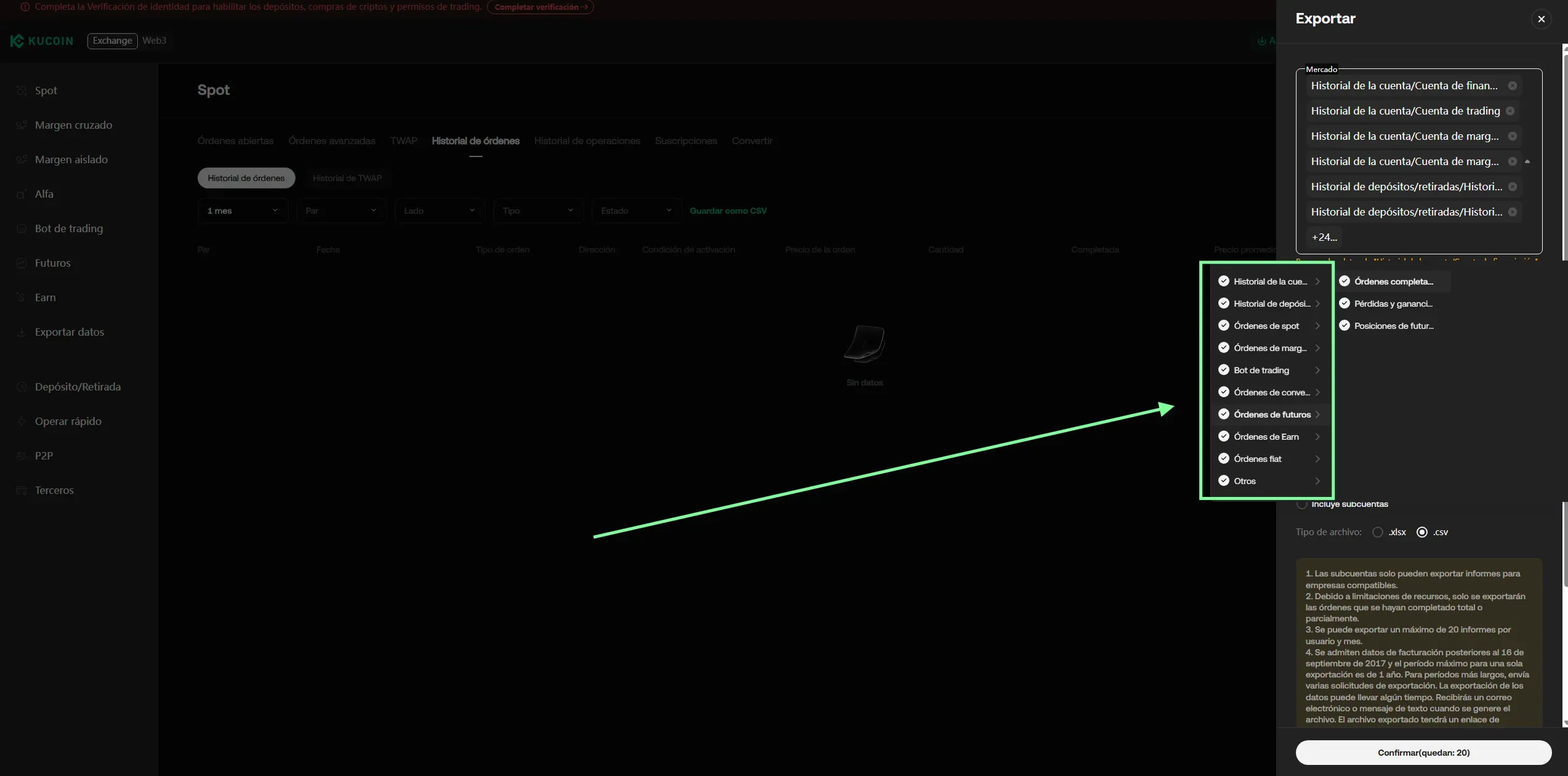
- In the Market dropdown, select every option (the “all” checkbox)
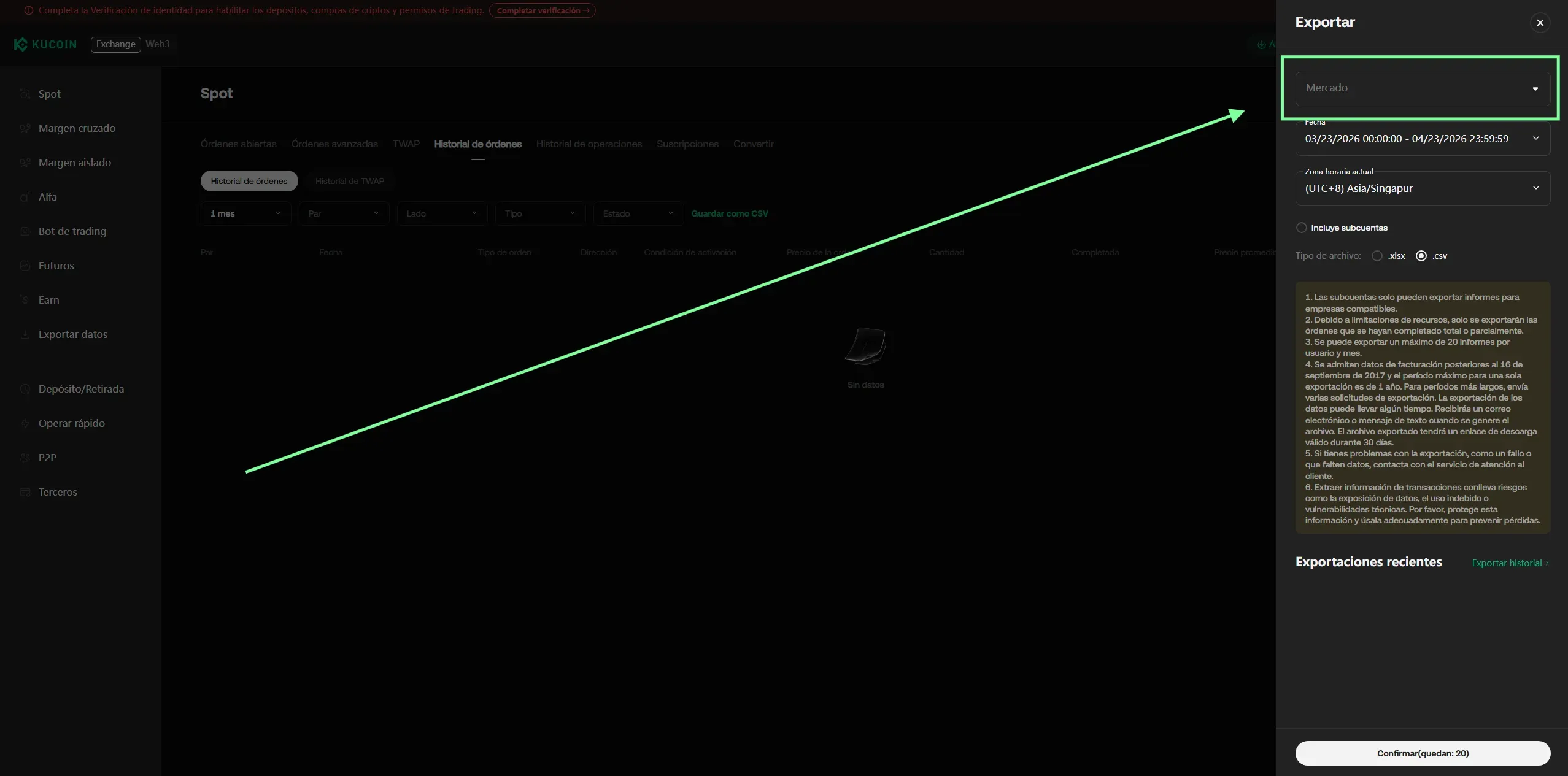
- For the date range, select “1 Year”
- Check that the time zone is UTC-0 Europe/Greenwich (it should be the default)
- If you use sub-accounts, tick the “Includes Sub-Accounts” box
- Select “.csv” as the file format
- Click “Confirm”
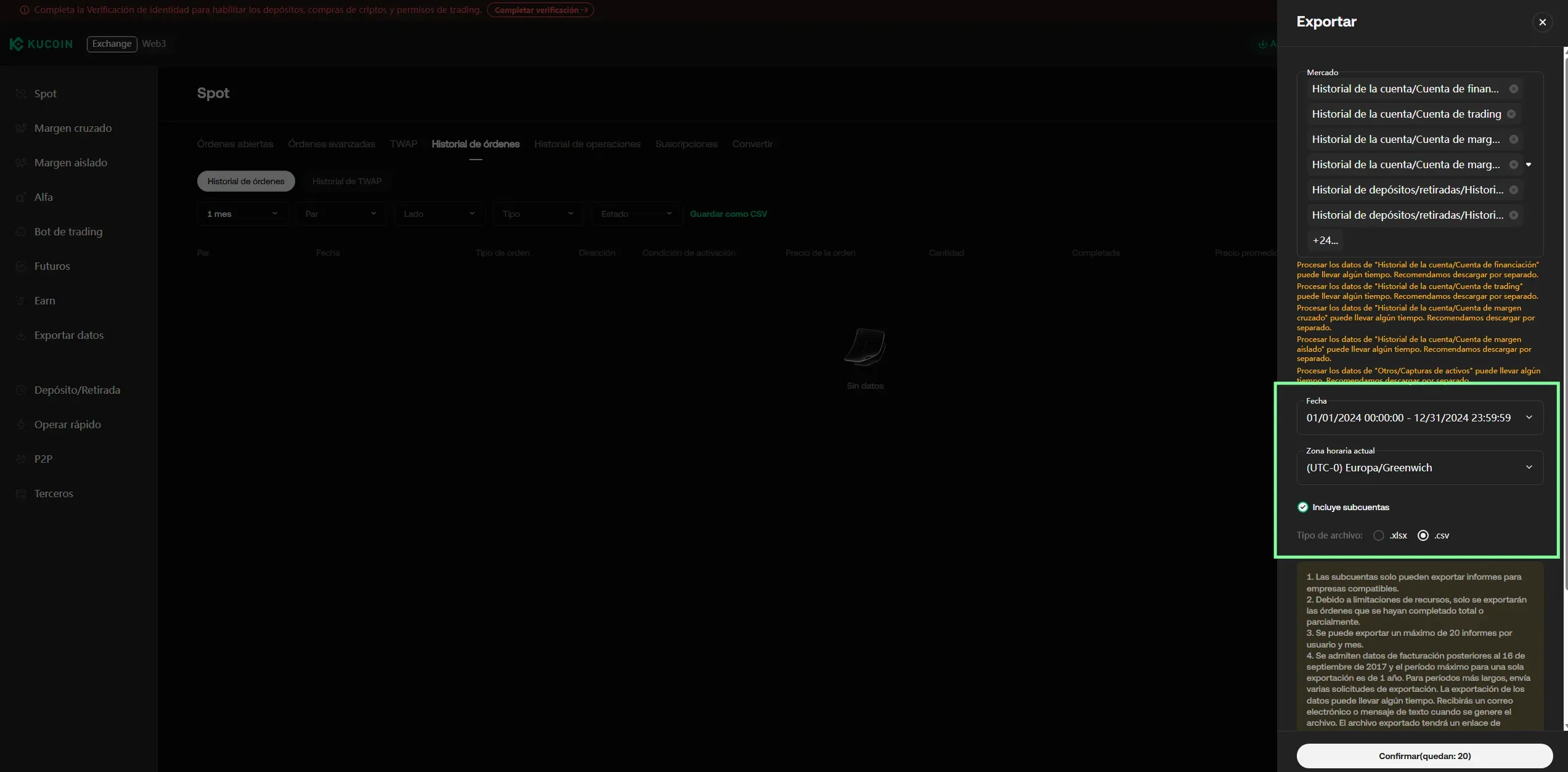
Important: each export covers a maximum range of 1 year. If you have been on KuCoin longer than that, you will need several exports to cover your whole history (one per year).
Step 3: download the files
KuCoin takes a few minutes to generate the export. Once it is ready you will get a notification by SMS, email or on the site itself.
- Go to Order Center > Order Export
- Click “Download” to get the ZIP file
- The ZIP contains several categorised CSV files — send us all of them, we will identify the ones we need
Note: the download link expires after 30 days. Download it as soon as you can.
Step 4: sending the documents
Gather every exported CSV file and send them to your assigned CryptoImpuestos specialist so they can be processed.
Important: do not open or modify the CSV files before sending them to us. Opening them in Excel can alter the date or number formatting.
Method 2: connecting by API
If you would rather automate the extraction, you can connect your account by API.
Step 1: open API Management
- Sign in to KuCoin
- Click your avatar (top right corner)
- Select “API Management”

You can also get there from the left-hand panel of your account, where “API Management” appears.

Step 2: create a new API Key
- Click “Create API”

Step 3: set read-only permissions
- Select “API-Based Trading”
- Enter an API Name (for example, “Cryptoimpuestos”)
- Create an API Passphrase — an extra password specific to KuCoin. Write it down, because it cannot be recovered
- Complete the 2FA check
- Under API Restrictions, tick “General” only (read-only)
- Copy your API Key, API Secret and API Passphrase

Security: the “General” permission is read-only — it allows account and order information to be read, but it does not allow trading or withdrawals. Keys with “General” permissions only do not expire.
Sub-accounts
If you use sub-accounts on KuCoin, you need to export their data too:
- CSV method: when exporting, tick the “Includes Sub-Accounts” box to include every sub-account in the same export
- API method: import the sub-account CSVs alongside those of the main account
Important limits
| Limit | Detail |
|---|---|
| Maximum range per export | 1 year for trade history |
| Deposits and withdrawals | 100 days maximum per export |
| Monthly exports | 20 reports per user per month |
| Download link | Expires after 30 days |
| History before 2019 | Requires contacting KuCoin support |
| Fiat purchases | Do not appear in the Trade History CSV (export separately) |
Frequently asked questions
Does KuCoin count as a foreign exchange for the Modelo 721?
Yes. KuCoin is based in the Seychelles and has no Spanish subsidiary. If your combined holdings on foreign exchanges exceed €50,000, you have to file the Modelo 721.
Which time zone should I select?
UTC-0 (Europe/Greenwich). It is the default and the safest choice to avoid your transaction dates shifting.
What if I have transactions from before 2019?
You will need to contact KuCoin support and request the history for those dates, as it is not available in the standard export.
Do staking rewards appear in the CSV?
Yes, but under the Earn Orders section. Make sure you export that category too. Every reward is taxed as investment income.
Summary
| Step | Action |
|---|---|
| 1 | Sign in to kucoin.com and go to Orders > Spot Trade History |
| 2 | Click Export, select every market, a 1-year range, the UTC-0 time zone and the CSV format |
| 3 | Go to Order Export and download the ZIP once it is ready |
| 4 | Export deposits and withdrawals separately (100 days max per export) |
| 5 | Send us every CSV file without opening or modifying them |
Need help with your KuCoin history?
At Cryptoimpuestos we download and process your KuCoin history. We calculate every gain and loss using the FIFO method and prepare your tax return.
Get in touch and we will help you.

Víctor Lázaro
Tax adviser, Cryptoimpuestos.es